

Download, install, connect: three different steps
A Surfshark download puts an installer on your computer or an app on your device. It does not automatically activate a subscription or create a working VPN connection. Keep these stages separate when checking what went wrong:
- Get the correct appMatch the operating system and processor. A phone APK will not install on an iPhone or a Windows PC.
- Install and sign inUse the account tied to your purchase. Approve legitimate installation and VPN configuration prompts.
- Connect to a serverWait for the connected status. An open app, a receipt or a downloaded file is not proof of an active tunnel.
- Check everyday useVerify your connection and the apps you actually use, then test reconnection after a network change.
For example, a new laptop may show a successful installation while the app still asks you to sign in. Buying again solves the wrong problem if you already have an active account. Find the original purchase email first.
What to check before you start
- Your operating system: open the device’s About screen and compare it with the requirements below.
- Your account: identify the email or sign-in method used for the subscription.
- Your internet access: complete a hotel or airport Wi-Fi sign-in before trying to establish the VPN.
- Your permissions: on a work-managed device, follow your organization’s installation and VPN policy.
If you are still deciding whether to subscribe, our best VPN comparison is the better starting point. If you already chose Surfshark, use the platform instructions here.
Surfshark system requirements: current apps versus legacy versions
Use this compatibility snapshot before downloading. We checked the linked platform documentation on September 10, 2026. The current store listing or specific download page should settle a compatibility warning; an old tutorial or a file that still opens is not evidence of ongoing support.
| Platform | Documented requirement | What to check |
|---|---|---|
| Windows | Windows 10 / 11, x64 or ARM64. | Match System type to the installer; see the legacy warning below. Windows details. |
| Mac | macOS 12 Monterey or later. | Check the website versus App Store distribution. Mac details. |
| iPhone / iPad | The iOS guide specifies iOS 16.1.0 or later. | Confirm compatibility for your exact iPhone or iPad in the App Store. iOS instructions. |
| Android | Android 6.0 or later in the installation guide. | Store availability and device compatibility still apply. Android instructions. |
| Linux | Debian 11+, Ubuntu 20.04+ or Mint 20+; AMD64 or ARM64. | GNOME, KDE or XFCE; systemd or SysVinit in the current guide. Linux details. |
| Apple TV | tvOS 17 or later. | Check the Apple TV device and software version. Apple TV instructions. |
Legacy Windows is a separate download. Surfshark’s Windows page labels Windows 7, 8, 8.1 and x86 as no longer supported, while still offering an older client. Do not treat that client as equivalent to the current app. A compatible VPN also does not extend the security-support lifetime of the operating system beneath it.
For mixed-device households, our VPN compatibility tool helps compare feature coverage. Device support and feature support are different questions: the existence of a Mac and an iPhone app does not mean their settings match.
Surfshark download for Windows: x64 or ARM64?
Open the official Windows download page. In Windows, go to Settings → System → About and read System type. Choose x64 for a matching Intel/AMD system or ARM64 for an ARM-based PC. Do not assume every Surface laptop uses the same processor.
- Download the matching installer and wait for it to finish.
- Open the setup file from Downloads. The official guide calls it
Surfshark.Setup. - Check the source before approving Windows’ permission to install the app.
- Let installation finish, open Surfshark and sign in.
- Complete two-factor authentication if enabled, then choose Quick-connect or a location.
- Wait for the active connection status before doing the checks below.
These steps follow the Windows setup guide. If an installer does not open, check its architecture and whether the download completed before repeating the process. An administrator restriction on a managed computer needs the administrator’s help.
Surfshark download for Mac: DMG or App Store?
Start at the official Mac download page. Surfshark offers a direct website download as well as a Mac App Store version. The important choice is which features you need, not simply which button appears first.
| Distribution | How to install | When the distinction matters |
|---|---|---|
| Mac App Store | Use Surfshark’s official store listing, install and open the app. | A straightforward store-managed VPN installation. |
| Website DMG | Get the DMG from Surfshark’s Mac page and follow its installation prompts. | Required for Surfshark Antivirus on Mac, with an eligible One or One+ subscription. |
The Mac Antivirus instructions explicitly say Antivirus is unavailable in the App Store build. If you need to switch distributions, follow those instructions, including removing the App Store version first. Buying another subscription will not add that feature to the wrong build.
Complete the first connection
- Install your chosen distribution and open Surfshark.
- Sign in to your existing account or complete account setup.
- Choose a connection and follow the macOS permission prompts initiated by the app.
- If directed to Login Items & Extensions, complete that permission step and return to Surfshark.
- Confirm the connected status and check normal browsing.
The current macOS setup guide illustrates the App Store route. If macOS reports an unverified or damaged package, redownload through the official website and investigate the exact message. Do not disable system safeguards to run an unknown copy.
How to download Surfshark on iPhone and iPad
Open the Surfshark iOS download page and follow its App Store link. This avoids confusing a similarly named app with the provider’s own listing.
- Install Surfshark from the linked listing and open it.
- Choose the existing-account login if you already subscribed.
- Sign in using the account associated with the purchase.
- Start a server connection.
- Approve the app’s request to add a VPN configuration; authenticate with your device when prompted.
- Wait for the connected status, then check your connection.
Surfshark’s iPhone and iPad instructions cover this permission flow. Installing an app and authorizing its VPN configuration are separate steps. If you declined the request, troubleshoot the permission before assuming the account is broken.
A useful first test is a normal move from home Wi-Fi to cellular data. Check whether the VPN reconnects as expected. Our VPN for iPhone guide explains iOS privacy limits, Private Relay and the settings worth reviewing.
Surfshark download for Android: Google Play or APK
The official Android page is the starting point for both the store installation and Surfshark’s own APK. Use the store route when it is available and compatible with your device.
Google Play installation
- Follow the official Google Play link and install Surfshark.
- Open the app and use your existing login if you have a subscription.
- Select a server and approve Android’s VPN connection request.
- Confirm the connected status on the app’s home screen.
The Android setup guide notes that a Google Play installation may briefly return to Google Play for security verification when opened. That documented step alone is not evidence that the app failed.
When you need the official Surfshark APK
If the Play Store route is unavailable, use Download .APK on Surfshark’s Android page. The official APK instructions cover opening the downloaded package, installing it and approving the first connection.
Keep any installation permission limited to the source you deliberately chose. Review or remove that permission afterward if no longer needed. Avoid “premium unlocked” or modified APKs: a familiar logo does not establish who built the file. Keep track of how this copy will receive updates rather than assuming a different store manages it.
Surfshark download for Linux: use the current graphical app
Surfshark has a Linux GUI. Start with its official Linux download page and the current installation guide, which links to Snapcraft and Flathub and documents a manual installation route.
- Check your distribution, release, architecture and desktop against the requirements above.
- Choose a supported store package or the official manual route.
- For manual installation, read the current script before executing it; the guide separates download, inspection and installation.
- Open the installed app, sign in and connect to a location.
Do not combine instructions for the current GUI with an old guide titled “Linux (Legacy version).” Package names and commands can differ. Likewise, do not paste a Debian installation recipe into an unrelated distribution simply because both systems run Linux.
For a server without a desktop or a custom manual configuration, first confirm that Surfshark documents your intended setup. A desktop app’s support list does not establish support for every headless environment.
Surfshark for TVs, browsers and routers: choose the right scope
Browser extensions: Chrome, Firefox and Edge
Choose your browser in the official download hub, then follow the extension-store link. Install the extension, sign in and connect from its own controls. Surfshark’s extension documentation explains that it handles browser traffic; other apps can keep using their ordinary connection.
For example, an extension in Chrome does not automatically route a separate desktop email app through Surfshark. Start with the native VPN app when you want broader device routing, while checking any configured exclusions. Surfshark also cautions that connecting the app and extension simultaneously can interfere with connectivity. Start with one route and add complexity only for a specific need.
Our VPN versus proxy guide explains why the traffic a tool covers matters as much as its name.
Apple TV, Android TV and compatible Fire TV devices
Use the native app where your exact device supports it. The Apple TV guide requires tvOS 17 or later and explains login options, including a code from another signed-in device. For Android TV and Fire TV, check the device’s store and the official TV setup guidance.
A television brand alone does not identify the operating system. Before buying anything, look up the exact model and whether it can install the native app. A compatible streaming device, supported VPN router or documented Windows connection-sharing setup can be an alternative when the TV itself cannot run it.
Old SmartDNS tutorials are no longer a setup option
Surfshark discontinued SmartDNS on February 2, 2026. Its notice says existing users must remove the old SmartDNS configuration to restore connectivity. Do not follow an older SmartDNS article as if it describes a currently available service.
Routers and consoles
A router needs compatible VPN-client functionality. A normal Windows or Mac installer cannot be installed on a router, and a console does not become compatible with an Android APK. Check Surfshark’s documented method for the exact router model and firmware. Save your existing configuration and identify how to restore it before making network changes.
After installation: verify the VPN before relying on it
The installation is only the beginning. Surfshark’s connection verification guide recommends checking the visible connection information and using IP and DNS checks. The following practical sequence helps distinguish a successful download from a working setup.
| Check | What to do | What the result means |
|---|---|---|
| App status | Select a server and wait for an active connection. | The client reports a tunnel; being logged in is not enough. |
| Public IP | Compare your browser-visible public IP before and after connecting. | A changed IP supports that this browser traffic is taking a different route. |
| DNS and exclusions | Run a DNS check and review any intentional routing exceptions. | Unexpected results need investigation; a DNS result alone is not a complete privacy audit. |
| Real applications | Try your normal browser, email, calls and other important apps. | A successful browser check does not test every app or feature. |
| Reconnection | Test sleep/wake or a normal Wi-Fi change without sensitive activity. | Check whether the connection resumes as you expect on your device. |
Record the selected server, app version and any custom settings when a problem occurs. That small note is more useful for troubleshooting than a screenshot that only says “not working.” For a fuller procedure, use our VPN setup and leak-testing checklist.
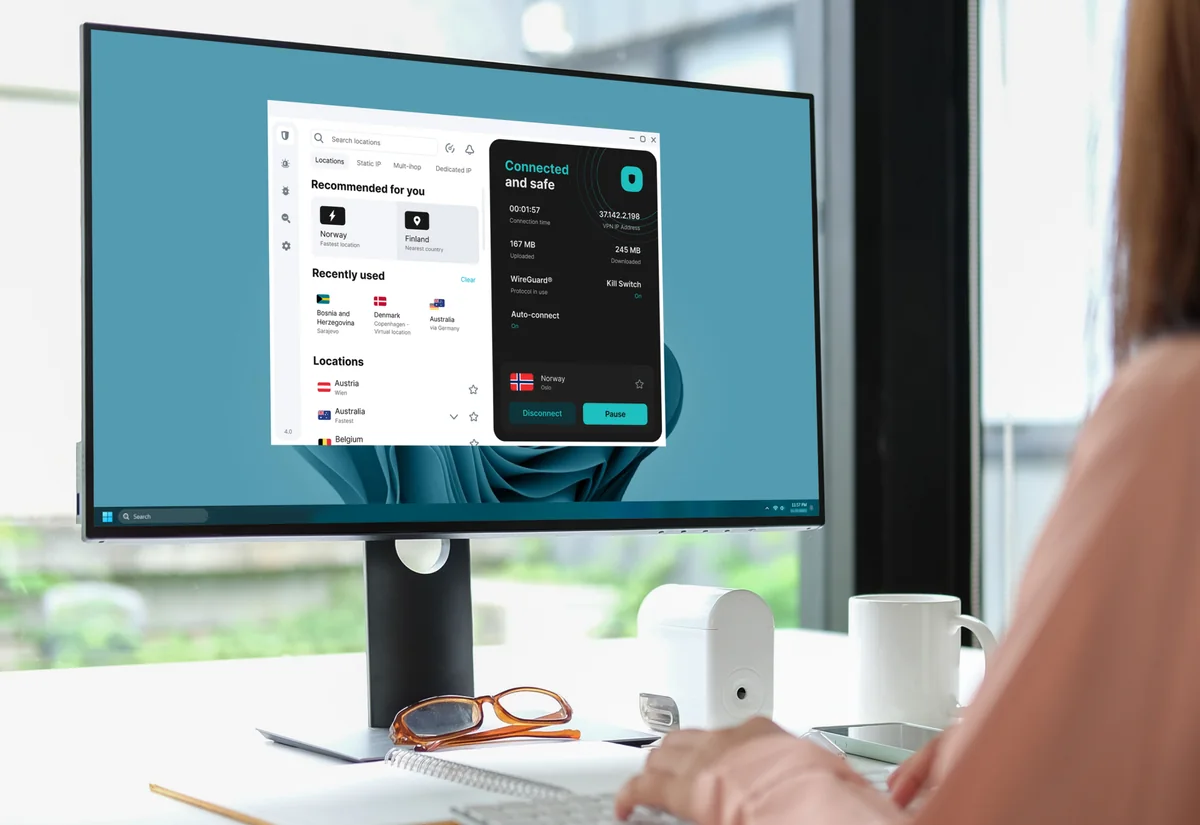
Settings to review once the basic connection works
Decide what you want to happen after a dropped connection, restart or network change. Look for the options supported by your app and read their descriptions. Our VPN kill switch guide explains disconnect protection; our VPN protection guide explains why a tunnel does not replace secure websites, updates or account security.
Surfshark download not working? Find the failing stage
Start with what you can observe. A file that will not download, an app that will not install and an account that will not connect are different problems. Change one thing at a time so you know which step helped.
| Symptom | First check | Useful next action |
|---|---|---|
| No installer appears | Did the browser finish or block the download? | Open the browser’s downloads list, then retry from the official device page. |
| Installer will not run | Correct OS, complete file and matching architecture? | Compare against the current requirements; download a fresh copy from the provider. |
| Permission denied | Do you have installation rights? | On a managed device, ask the administrator rather than trying to bypass policy. |
| Already paid, but asked to subscribe | Does this login match the purchase receipt? | Check the email and sign-in method before paying again. |
| Login works, connection does not | Internet access, VPN permission, current app? | Complete Wi-Fi sign-in, review the permission request and retry a nearby server. |
| One app or website fails | Does ordinary browsing work? Are two VPN routes active? | Isolate the affected app, server or extension instead of reinstalling everything. |
| Antivirus missing on Mac | Did you install the App Store build? | Check the DMG requirement and plan entitlement in the Mac section. |
| TV stopped working with old DNS settings | Was Surfshark SmartDNS configured previously? | Follow the retirement notice to remove the discontinued configuration. |
Surfshark’s installation troubleshooting page identifies OS compatibility and installation permissions as common causes. For current minimum versions, use the newer platform-specific guides above. If a security product flags a download, inspect the exact warning and obtain a fresh official copy before making exceptions; do not switch off protection for an unexplained file.
Collect useful details before contacting support
- Device model, OS version, app version and installation source.
- The exact error and whether it occurs before or after login.
- Whether the problem affects all servers, one network or one application.
- Which changes you tried, and whether ordinary internet access works.
Send diagnostics through Surfshark’s official support route when requested. Keep passwords, two-factor recovery codes and payment-card details out of screenshots or public posts. A reinstall can replace damaged app files; it cannot fix an unsupported device or move a purchase to a different account.
Is Surfshark free to download? Subscription and trial explained
The app is free to download; the VPN service is paid unless you have an eligible active trial. A “Get” or “Install” button in an app store describes the download, not a permanently free VPN plan.
At our check, the official download page advertised a seven-day trial on up to three compatible devices, attached to 12- or 24-month plans with specified payment methods. Eligibility and billing terms can change. Read the offer presented to you, including when payment starts, the amount and how to cancel. Do not assume a plan reached through any link necessarily includes that trial.
Before subscribing, write down the full first charge, the term it covers and the renewal amount. A monthly equivalent on a long plan is not necessarily a monthly payment. If you only need a VPN, compare the basic plan before paying for additional security services that your devices may not support.
Ready to choose Surfshark?
Review the current checkout terms and match the plan to your devices. If you already have an active account, return to the download cards and sign in.
Affiliate link. Offers are conditional; the checkout determines availability, billing and eligibility.
Need access before subscribing? The Surfshark free trial guide explains web activation, device limits and cancellation.
Updates, reinstallation and cancellation
Keep the app and operating system updated. Use the update mechanism appropriate to the distribution you installed: a store-managed application and a manually downloaded package may follow different processes. When troubleshooting, note the installed version before comparing it with a current support article.
Before reinstalling, confirm you can sign back in and record any settings you want to restore. Use the provider’s platform-specific removal instructions, then reinstall through the official route. Avoid deleting VPN profiles belonging to an employer or another service.
Uninstalling Surfshark does not cancel your subscription. Check who bills you. Surfshark’s subscription-management guide directs direct customers to their account’s subscription and payment settings; Apple and Google Play purchases must be managed with the relevant store. Stopping renewal and requesting a refund are separate actions.
Keep the cancellation confirmation and check the resulting renewal or expiration date. Removing an app icon is not billing confirmation. If your only aim is to move to a new phone, install there and use the existing account rather than canceling unnecessarily.
Frequently asked questions
Where should I download Surfshark?
Start with Surfshark’s official device page or download hub and follow its installer or app-store link. HostingRanker links to those pages and does not distribute installation files.
Is Surfshark free to download?
Yes, the app download is free. Using the VPN requires an active subscription or eligible trial. Check trial eligibility, payment timing and cancellation terms before signing up.
Which Surfshark Windows installer do I need?
Check Settings → System → About → System type. Select the matching x64 or ARM64 download. Legacy Windows and 32-bit systems have a separate older client, not the current supported app.
Can I download Surfshark for Mac from the App Store?
Yes. Surfshark documents a Mac App Store installation. If you need Antivirus on Mac, its documentation instead requires the website DMG build and an eligible One or One+ subscription.
Can I download the Surfshark APK safely?
Use the APK supplied through Surfshark’s own Android download page, keep it updated and review installation permissions. Avoid unofficial mirrors or modified premium-unlocked packages. No filename or logo alone proves a file is authentic.
Does Surfshark have a Linux app with a graphical interface?
Yes. The current Linux guide covers a graphical app, supported distributions and official package routes. Check the requirements and avoid mixing current instructions with legacy-client commands.
Is the Surfshark extension enough for my whole computer?
The browser extension covers browser traffic. It does not automatically cover separate applications. Choose the native app for broader device routing and review its exclusions and platform-specific limits.
Why does Surfshark ask me to pay after I already subscribed?
First compare your login with the account and sign-in method associated with the receipt. Confirm the subscription is active and ask official support to resolve any mismatch before purchasing again.
Can I install Surfshark on another device with my existing account?
Use the same account on compatible devices. Check your entitlement’s device conditions, especially for a trial; installing the app does not itself activate another subscription.
Does uninstalling Surfshark stop payments?
No. Manage renewal with Surfshark or the store that bills you and keep the confirmation. An app removal, a renewal cancellation and a refund request are different actions.
Sources & editorial notes
Official download pages, installation instructions and compatibility details checked September 10, 2026. Requirements and offers can change; check the current distribution or store listing for your device.
- Surfshark: official downloads and current trial terms
- Surfshark: Windows downloads, architectures and legacy support
- Surfshark: Windows installation
- Surfshark: Mac download and compatibility
- Surfshark: macOS App Store setup
- Surfshark: Antivirus requires the Mac DMG distribution
- Surfshark: iPhone and iPad installation
- Surfshark: Android installation and Google Play verification
- Surfshark: official Android APK installation
- Surfshark: current Linux app and requirements
- Surfshark: browser extension coverage and app interaction
- Surfshark: smart TVs, consoles and router alternatives
- Surfshark: Apple TV setup and tvOS requirement
- Surfshark: SmartDNS retirement notice
- Surfshark: checking a VPN connection
- Surfshark: installation problems
- Surfshark: subscription, renewal and store billing
This guide combines current official documentation with our practical setup checklist. We have not performed new Surfshark installation, speed or leak tests on these platforms. The supplied app illustration is labeled, and the article thumbnail is conceptual artwork. Read our methodology. Report a correction.

About the author
Pavel Stich
Pavel is a co-founder of HostingRanker with a focus on SEO and copywriting for the technology and financial sectors. His interest in early-stage businesses informs his practical approach to software: understand the problem, examine the trade-offs and choose tools that support a sustainable business.