



How we choose an iPhone VPN
The most useful iPhone VPN is one that fits your actual use, works on your version of iOS and remains convenient enough to keep configured correctly. A desktop review cannot settle those questions for you.
We shortlisted five services covered by our detailed reviews and compared their official iPhone documentation. The order above reflects different buying needs: a general paid starting point, many devices, a free tier, configuration choices and an evaluation window. It does not establish which service wins a speed race on your mobile network.
- iOS fit: supported operating system, native app, reconnection controls and documented platform limitations.
- Privacy controls: what disconnect protection and exceptions actually cover, plus a provider policy you can inspect.
- Everyday usability: whether your banking, calls, websites and local devices can work with the configuration you intend to keep.
- Purchase clarity: the plan you need, simultaneous-device allowance, renewal commitment and billing channel.
Each recommendation links to the relevant official evidence and a detailed review. Our editorial methodology explains the distinction between published specifications and measurements.
For example, our NordVPN practical test concerns Windows. It is useful evidence for that setup, but it does not prove iPhone performance, battery use or leak protection. For another view across platforms, see our general VPN shortlist.
What does a VPN do on an iPhone?
A VPN creates an encrypted connection between your phone and a VPN server. Traffic included in that connection travels through the server, so a destination usually sees the VPN exit’s public IP instead of the public IP of your Wi-Fi or mobile connection.
Imagine using hotel Wi-Fi to open a travel website. With the relevant traffic inside the tunnel, the hotel’s network sees the connection to the VPN endpoint rather than directly handling the same destination traffic. You still need to trust the VPN operator, the website and the device itself. A VPN moves part of the trust relationship; it does not remove it.
HTTPS already protects a different layer
Correctly validated HTTPS protects the contents of a connection between your browser or app and its service. A VPN adds protection along the route to its own server. These are complementary layers. A tunnel ending at a VPN server does not turn an insecure HTTP destination into an HTTPS service; see the TLS specification and our guide to what a VPN protects.
Understand the Apple-platform boundary
Apple’s VPN privacy notice says certain essential system-service traffic can travel outside an active VPN. That is a reason to read precise coverage statements rather than assume a connected badge means every packet uses the same route.
A VPN also does not change your GPS coordinates, erase cookies, hide a logged-in account from its website or make a phishing page trustworthy. A service can use those signals to recognize you even when your public IP changes. Keep iOS updated, use strong authentication and check suspicious links independently.
Do you need a VPN on your iPhone?
You do not need a paid VPN simply because you own an iPhone. Start with the problem you want to solve. A good subscription is more useful than a vague promise of “extra security” only when its features meet that need.
Shared Wi-Fi and travel
A VPN is useful when you want an additional network-privacy layer on hotel, airport or café connections. Complete any legitimate Wi-Fi sign-in first, then verify the tunnel before continuing.
Privacy across apps
Consider a device VPN when your goal extends beyond Safari browsing. Check routing exceptions and iOS limitations instead of assuming that a browser feature covers everything.
Remote work access
Use your employer’s required VPN for internal systems. A consumer VPN subscription does not grant access to a company network, and a second profile may interfere with the intended setup.
Occasional Safari browsing
If you already pay for iCloud+ and only want its supported browsing-privacy features, compare Private Relay before adding a separate subscription.
On cellular data, a VPN can still change the network route and visible public IP for covered traffic. It does not provide mobile service, increase your data allowance or replace an eSIM. On trusted home Wi-Fi, the decision depends on whether you want that privacy layer from your internet provider and whether the tradeoffs are acceptable.
Compare iOS requirements before choosing a plan
The following is a documentation snapshot, not a promise about future app versions. Check Settings → General → About for your iOS version, then read the current App Store compatibility section. Being able to install an older build is not the same as receiving the latest supported features.
| VPN | Published iOS minimum | Connection allowance | Decision point |
|---|---|---|---|
| NordVPN | iOS 16.0 or later | 10 simultaneous | Everyday paid starting point |
| Surfshark | iOS 16.1.0 or later; 64-bit | Unlimited simultaneous | Website exceptions and many devices |
| Proton VPN | iOS 17.0 or later | Free: 1 device; paid allowance depends on plan | Free use versus paid location choice |
| Private Internet Access | iOS 15 or later | Unlimited simultaneous | Protocol options; no iOS split tunneling |
| CyberGhost | iOS 15 or later | 7 simultaneous | Check refund term and billing channel |
“Unlimited devices” refers to simultaneous connections within the service’s account rules. It does not mean unlimited accounts for resale, or that every product bundled with the VPN has the same allowance. Count your phone, laptop, tablet and other devices that will be connected at once.
If you also use an iPad, Apple TV, router or Windows PC, check those apps separately. A feature listed on a provider’s website can be available on only some platforms. Our VPN compatibility guide helps organize the questions.
Free VPN for iPhone: when is it enough?
For basic use without a subscription commitment, Proton VPN Free is our starting recommendation. Its iOS free-plan page describes unlimited data. The plan comparison lists one device for Free; the iOS app assigns a server from its free pool rather than offering the same location selection as paid access.
That is a practical tradeoff if your priority is an occasional protected connection and you do not need a particular country. Try your normal websites, reconnection behavior and network transitions before deciding that an upgrade is necessary. A free tier that meets your needs is better value than a bundle of unused features.
Three meanings of “free” to separate
- Free plan: an ongoing tier with defined limits.
- Free trial: temporary access that may require billing details and renew unless canceled.
- Money-back period: a purchase followed by a possible refund under stated conditions.
An App Store download labeled free may still require an account or a paid plan. Read the in-app purchase terms before authenticating a purchase. For any unfamiliar free VPN, check who operates it, how it earns revenue, which data it collects and whether the privacy policy describes the actual product you are installing.
A paid plan can make sense for a specific location, more simultaneous devices or a feature you will use. Compare the total first invoice and renewal cost, not just a monthly equivalent. Our VPN cost calculator is designed for that comparison.
How to set up a VPN on iPhone
The simplest route for a consumer VPN is its official iOS app. You normally do not need to enter a server address or build a manual configuration yourself.
- Check compatibility and the publisher. Follow the provider’s official download link to the App Store. Confirm the developer, supported iOS version and plan requirements. Avoid similarly named apps or unsolicited configuration files.
- Install and sign in. Use the account associated with your existing subscription, or deliberately choose a free plan or paid term. Installing the app and buying a new subscription are separate decisions.
- Allow the VPN configuration. The first connection normally triggers an iOS permission prompt. Approve it only for the app you intended to install. Proton’s iOS instructions illustrate the Allow prompt; other apps use their own onboarding.
- Make your first connection. Start with the app’s recommended or nearby server. Pick a specific country only when you have a reason and your plan supports it.
- Review the settings. Check reconnection, kill-switch behavior and any exceptions. Begin with the recommended protocol; change one setting at a time if troubleshooting becomes necessary.
- Confirm the result. Check the connected state in the VPN app and make a fresh network request. Then try the apps you actually use. Follow the first-session checklist below.
What is the VPN setting already on my iPhone?
iOS includes a way to manage VPN configurations. It does not itself supply a commercial server network or a subscription. Apple documents manual configuration under Settings → General → VPN & Device Management → VPN → Add VPN Configuration.
Use manual setup when your employer or VPN provider explicitly supplies the configuration and instructions. Leave organization-managed profiles to your administrator. Do not accept a certificate or device-management profile just because a random webpage says it is needed to “secure your iPhone.”
Installing NordVPN specifically? Our NordVPN iPhone download instructions cover the official App Store route and first connection.
For the provider-specific steps, see our Surfshark iPhone and iPad installation guide.
The iPhone VPN settings that deserve attention
Auto-connect and kill switch solve different problems
Auto-connect tries to bring the tunnel up. A kill switch is intended to restrict covered traffic when the required connection is unavailable. Check whether the behavior applies to unexpected loss, deliberate disconnection, startup or all of those states.
NordVPN’s platform guide says its iOS kill switch is enabled by default and has no separate visible setting. A missing Windows-style toggle therefore does not tell you that the iPhone app lacks disconnect protection.
Proton’s kill-switch documentation lists Apple-service DNS exceptions and local-network restrictions. It also labels its advanced iOS/iPadOS mode as beta at the time of this check. Do not assume a beta option is the stable default available to every user. Our kill-switch explainer separates these modes and explains their limits.
Split tunneling is not uniform on iOS
Surfshark’s iOS Bypasser instructions cover excluding websites: Settings → VPN settings → Bypasser → Add website. This does not establish a way to exclude an entire banking or streaming app. PIA explicitly says split tunneling is unavailable on iOS.
Use an exception only for a defined reason. The excluded activity takes the direct route, so it should not be counted as VPN-protected. A guide showing an Android app selector is not an iPhone setup guide.
Protocol and blocking options
Start with the recommended protocol and a nearby location. If a connection stalls, try one supported alternative and compare the result. Changing the server, protocol and blocker together makes it harder to identify the cause.
Similarly, distinguish a malicious-domain filter, a Safari content blocker and antivirus software. They operate at different scopes. A security feature in a desktop bundle does not automatically become a full-device iPhone scanner.
iPhone VPN vs iCloud Private Relay
iCloud Private Relay is not a direct replacement for a country-selectable device VPN. Apple describes it as an iCloud+ feature that protects Safari browsing using two separate relays. One handles your IP while the other handles the destination, separating information that would otherwise be visible together. Read Apple’s explanation of Private Relay.
| Question | iCloud Private Relay | Consumer VPN app |
|---|---|---|
| Main purpose | Privacy for supported browsing traffic, particularly Safari. | Tunnel the traffic covered by the VPN configuration. |
| Choose an overseas country? | No arbitrary country picker. | Usually possible on a suitable paid plan. |
| Included with what? | iCloud+, subject to availability. | The VPN provider’s free or paid plan. |
| Protect every connection? | Do not treat it as a universal app tunnel. | Do not assume every Apple system connection is tunneled. |
| When to compare it first | You already have iCloud+ and mainly want Safari privacy. | You want broader app coverage or a chosen VPN exit. |
Apple lets you keep a general location or use a broader country-and-time-zone location for Private Relay. That is not the same as choosing a foreign VPN server. Its iPhone guide also explains availability and per-network controls.
If both features are enabled, do not assume two icons mean twice the protection. Establish which feature handles the traffic you are checking and consult the relevant app guidance when troubleshooting. Compare one configuration at a time so the result is understandable.
Your first 10 minutes: check the setup, not just the icon
Use these checks before committing to a long subscription. They are a practical acceptance check for your device, not a complete independent security audit. Keep your ordinary public IP and account details private.
| Check | What to do | What it tells you |
|---|---|---|
| 1. Establish a baseline | Before the protected session, note your usual public IP. Connect the VPN and make a fresh IP-check request. | Whether that request used a distinguishable VPN exit. |
| 2. Try the real apps | Open your browser, mail, banking app and a short call or permitted stream. | Whether the configuration is usable for your routine. |
| 3. Change networks | On networks you control, switch between Wi-Fi and cellular while observing reconnection. | How the app recovers; not proof that no packet escaped. |
| 4. Lock and wake | Let the phone sleep, wake it and make a fresh request. | Whether the expected connection is present after waking. |
| 5. Check disconnect policy | Read the documented behavior, then try a harmless manual disconnect and reconnect. | Whether deliberate disconnection behaves as described. |
| 6. Record the setup | Save the iOS/app version, protocol, location, exceptions and any problem. | A repeatable starting point for support or a later recheck. |
An IP-check website observes the browser request it receives. It cannot establish what every background app did, and a cached page or buffered video can keep displaying when no fresh data is arriving. A successful reconnection also does not rule out a brief direct route during the transition.
For DNS and IPv6, compare the observed resolver and address behavior with the provider’s documented design. Do not label an unfamiliar resolver name a confirmed leak without understanding the route. More demanding assurance requires traffic observation and a method that covers transition windows and relevant system exceptions.
Download the iPhone VPN checklist
Our setup and leak-testing guide develops the method. If the desired policy is to block traffic when disconnected, read how to evaluate a kill switch before interpreting a failed or successful page load.
Using an iPhone VPN for travel and streaming
Before a trip, install the app, sign in, update it and save your recovery details somewhere you can access securely. Confirm that the service is available at your destination and that its use fits applicable rules. Do not make your first connection attempt while relying on unfamiliar airport Wi-Fi for every part of account recovery.
For hotel or airport networks, a sign-in page may need to work before the tunnel can connect. Complete the legitimate captive portal without opening sensitive activity, reconnect the VPN, then verify the result. A saved hotel network is not automatically a trustworthy one; confirm the correct network name with the venue.
Will it work with Netflix or another streaming app?
No static recommendation can guarantee access to a particular library or title. A streaming service may consider your account region, billing, location permissions and the reputation of a shared exit IP, as well as its current rules. Check the service’s terms and test the content you are entitled to use during an eligible evaluation period.
A VPN does not remove a subscription requirement, fix a slow hotel connection or create roaming data. If a stream buffers, try a nearby exit first and compare with a harmless baseline. Choosing a distant country adds a route change that may make performance worse even when the VPN service itself is working normally.
For a focused setup and troubleshooting walkthrough, see NordVPN Netflix on phones, computers and TVs.
For mainland China, ordinary iPhone app compatibility is insufficient. Check our NordVPN China manual-setup overview and current official iOS instructions.
Will a VPN slow down your iPhone or drain its battery?
Encryption, an extra network hop and connection maintenance can affect speed, latency and battery use. The size of that effect depends on the phone, signal quality, network route, protocol and workload. A single percentage quoted without that context is not a useful prediction for your iPhone.
For a practical comparison, use the same phone, network, nearby test endpoint and similar time window. Run a few ordinary measurements with and without the VPN, avoiding large tests on a metered allowance. Record download speed, upload speed and latency rather than focusing on the biggest download result.
Then try the task that matters. A stable video call can be more valuable than a higher peak download speed. For battery, compare similar sessions with the same screen brightness, apps and signal conditions. One day of travel with weak cellular reception cannot fairly be compared with a quiet day on strong home Wi-Fi.
- Start with a nearby server and the recommended protocol.
- Investigate repeated reconnects instead of leaving the app in a failing loop.
- Change one setting per comparison and note the effect.
- Use a more complex route only when its privacy purpose justifies the extra work.
We have not measured a battery percentage or named a fastest iPhone VPN in this guide. Use your own short comparison to decide whether the experience is acceptable.
Fix common iPhone VPN problems
Work from the smallest reversible change. First check whether the ordinary network is functioning, then the VPN connection, then the affected app. Save important work before changing a configuration that could interrupt a call or upload.
| Symptom | Try this first | Keep in mind |
|---|---|---|
| VPN says connected but nothing loads | Reconnect to a nearby server, then try one alternative protocol offered by the app. | A blocking rule may be working while the tunnel is unavailable. |
| Hotel Wi-Fi never connects | Complete the legitimate Wi-Fi sign-in, then reconnect the VPN. | A captive portal can require a direct initial connection. |
| Banking app or one website fails | Check for an outage; try another local exit and review relevant blocker settings. | A website exclusion may not apply to its separate app. |
| VPN keeps turning itself back on | Review the app’s auto-connect or on-demand policy. | Turning off the iOS status switch may not change the app’s intended policy. |
| AirPlay, printer or other local device disappears | Review the provider’s LAN access and kill-switch documentation. | Local-device access is a separate question from internet routing. |
| CarPlay or another accessory connection fails | Repeat with a controlled VPN-off comparison when safe, then check provider support. | A problem appearing alongside a VPN does not by itself prove the cause. |
| Location still looks unchanged | Compare a fresh public-IP result with the app’s location permission and account region. | A VPN exit does not replace GPS or erase account information. |
| Work resources stop working | Return to the organization’s required VPN and contact its administrator. | Do not delete managed profiles to troubleshoot a consumer subscription. |
If you temporarily disable a blocker, exception policy or VPN to isolate the problem, restore the intended configuration afterward. Record which change helped. Give support the app and iOS versions, server region, protocol and time of the failure; do not post credentials, recovery codes or raw private network logs publicly.
When a provider recommends reinstalling, first make sure you can sign in again and identify any configuration it asks you to remove. Randomly deleting every network profile is especially unhelpful on a phone used for work.
Check the bill, renewal and cancellation route
Before paying, compare the initial total, the length of service it buys, any introductory extra months and the later renewal term. A prominently advertised monthly equivalent may be a calculation on a payment collected upfront. The bundle with the most features is not automatically the best iPhone purchase.
Check whether you are paying the VPN provider directly or Apple through an in-app subscription. Offers and refund handling can differ by channel. Save the receipt and eligibility terms; a promotional headline is not the full contract.
For an Apple-billed subscription, Apple’s cancellation steps are Settings → your name → Subscriptions → select the subscription → Cancel Subscription. Apple advises canceling a free or discounted trial at least 24 hours before it ends. If another company bills you, manage cancellation with that company.
Deleting the VPN app is not a subscription cancellation. Also separate canceling renewal from asking for a refund. Apple directs eligible refund requests through its refund process; approval depends on the purchase and circumstances. Do not assume a provider’s direct-purchase guarantee governs an Apple-billed transaction.
For longer subscriptions, set a reminder before the relevant renewal or evaluation deadline and test your actual phone early. Use the cost calculator to compare equivalent periods, then verify the figures and terms in the current checkout.
For Surfshark specifically, the free trial guide explains the difference between web signup and Apple billing, including where to cancel.
Which iPhone VPN should you choose?
Start with one clear need, not the longest feature list. Use NordVPN as the general paid starting point, Surfshark for many devices and website exceptions, or Proton VPN Free to begin without a paid commitment. Compare the other candidates when their particular tradeoffs fit you better.
Then check compatibility, install the official app and try your real routine on Wi-Fi and cellular. Choose the configuration that you understand and can maintain. If you already have a suitable subscription, good setup and verification may do more for you than buying another one.
For deeper product analysis, read our NordVPN, Surfshark, Proton VPN, PIA and CyberGhost reviews.
Frequently asked questions
What is the best VPN for iPhone?
Our paid starting shortlist is NordVPN for everyday use, Surfshark for many devices and website exceptions, and Proton VPN for a free starting point. PIA and CyberGhost suit other priorities described above. The right choice depends on your iOS version, features and terms; this is not a measured speed ranking.
Does an iPhone have a built-in VPN?
iOS has VPN configuration support, but that does not supply a consumer VPN service. You still need a provider’s app or configuration, or an employer’s setup. iCloud Private Relay is a separate iCloud+ privacy feature.
What is a good free VPN for iPhone?
Proton VPN Free is our starting pick here. Its ongoing free tier has no data cap, but offers less location control than paid access. Check that your iOS version is supported and that those limits fit your use.
Should I leave my iPhone VPN on all the time?
Leave it enabled if you want covered traffic to use the VPN consistently and the setup works with your routine. Verify reconnect and disconnect behavior first. Continuous use is a choice about routing and trust, not a guarantee of anonymity.
Does a VPN work on cellular data?
Yes, a compatible VPN can run over a working cellular internet connection as well as Wi-Fi. It still consumes your mobile data and cannot replace your carrier plan or eSIM. Check reconnection when moving between networks.
Is iCloud Private Relay the same as a VPN?
No. Private Relay focuses on supported browsing privacy and does not offer an arbitrary foreign-country selector. A consumer VPN provides a different routing service with its own coverage and provider relationship. See the comparison above.
Will a VPN hide my iPhone location?
It can change the public IP seen by destinations for tunneled traffic. It does not change GPS coordinates, remove location permissions or hide a signed-in account. Those other signals can still identify your location or identity.
Why does my iPhone VPN keep reconnecting?
An auto-connect or on-demand rule may be restoring the tunnel intentionally. Alternatively, an unstable network or failing connection can cause repeated retries. Review the policy and test a nearby server before changing several settings.
Can I exclude one iPhone app from the VPN?
Do not assume this is available. Consumer-app options differ by platform. Surfshark’s documented iOS Bypasser excludes websites rather than entire apps, while PIA says it has no iOS split tunneling. Managed enterprise configurations are a different setup.
Can an iPhone VPN guarantee access to a streaming service?
No. Access can depend on the service’s current rules, account region and other location signals as well as the VPN exit. Test your permitted use and read the applicable terms before committing to a subscription.
Does deleting the VPN app cancel my subscription?
No. Cancel with the company that bills you. For an Apple-billed subscription, use Settings, your name, then Subscriptions. Cancellation and a refund request are separate actions.
Do I need a second subscription for my iPad?
Often you can use an existing plan, but check iPadOS support and the simultaneous-device allowance. Installing on another device is not always the same as being allowed to connect all devices at once.
Sources & editorial notes
Official documentation checked September 9, 2026. iOS requirements, app menus, plan terms and regional availability can change. Confirm the current App Store listing and checkout before subscribing.
- Apple: VPNs & Privacy
- Apple: About iCloud Private Relay
- Apple: Protect web browsing with iCloud Private Relay on iPhone
- NordVPN: iOS app, compatibility and device allowance
- NordVPN: Kill Switch behavior by platform
- Surfshark: iOS app and supported features
- Surfshark: Bypasser setup on iOS
- Proton VPN: iPhone and iPad installation and settings
- Proton VPN: Free VPN for iOS
- Proton VPN: Free and paid plan differences
- Proton VPN: Kill switch and Apple-platform limitations
- PIA: iOS app and compatibility
- PIA: Website access, iOS exclusions and Safari content blocking
- CyberGhost: iOS features, devices and refund periods
- Apple: Cancel a subscription
- Apple: Request a refund for apps or content
- RFC 8446: TLS confidentiality and integrity
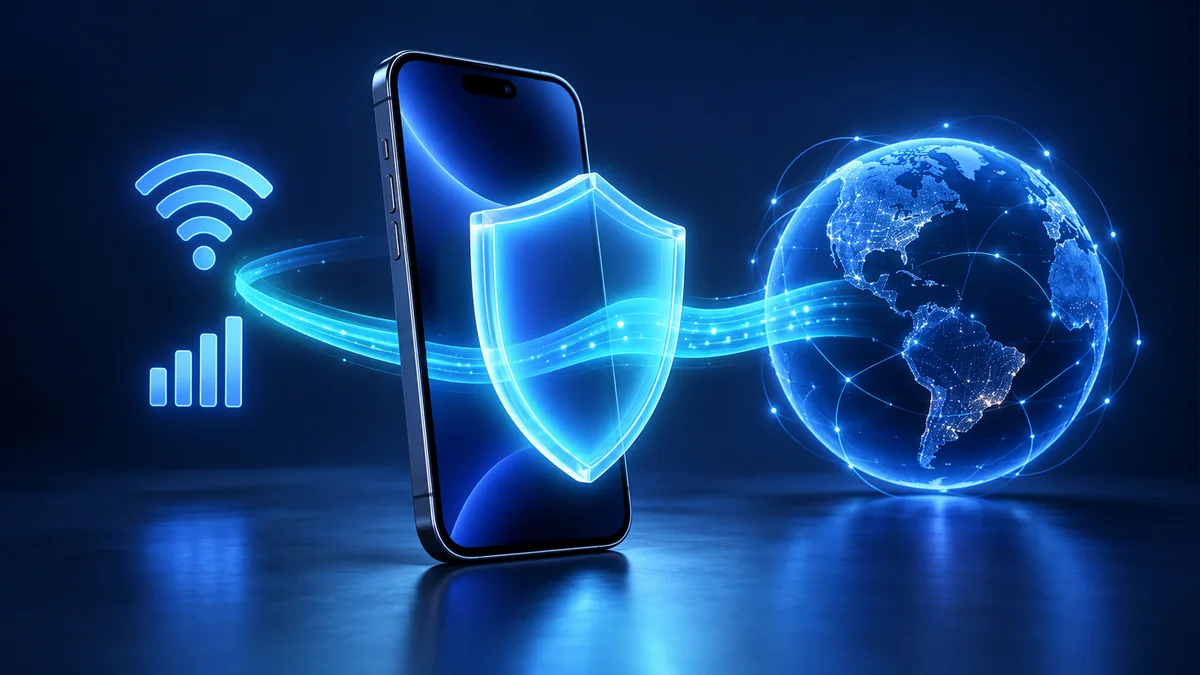
These recommendations combine documented iOS features with editorial analysis of different user needs. We did not conduct a new five-provider iPhone speed, battery, streaming or packet-capture test. The order is a practical starting shortlist, not a measured performance ranking. The illustration is conceptual AI-generated artwork. Read our methodology. Report a correction.

About the author
Pavel Stich
Pavel is a co-founder of HostingRanker with a focus on SEO and copywriting for the technology and financial sectors. His interest in early-stage businesses informs his practical approach to software: understand the problem, examine the trade-offs and choose tools that support a sustainable business.